File Entity Duplicates
Articles in this Topic
| About Duplicates | Review and Merge Potential Duplicates |
| The Merged Entity | Remove Entities from Duplicates Active List |
| Watch the Videos |
Related Topics
| Adding Entities | Entities and Document (Settings) |
1: On the File Duplicate page, Entities that have been identified as potential duplicates are listed on the Active list.
2: In the Merge Duplicates pane, when an Entity is selected from the Active list, it's potential matches are loaded for review and can be selected (where appropriate) to merge the Entities.
3: The selected Entities can be merged by clicking Merge Checked Entities.

When Entities are merged, all the information from the selected matched Entities including the Profile Summary content, Attachments, Notes, Tags, Properties and Remembered Terms, Documents, Links and Files are merged with the Master Entity.
Note: Duplicates can be identified and merged across Files where a User has access permissions to those File's documents and Entities.
 About Duplicates
Each Entity Type has a number of properties that are used to help both identify and describe it's attributes. For example a vehicle Entity type may have properties for - licence plate, make, model and colour and a person Entity type might include first, middle and last name, date-of-birth, known as, ID, role, appearance etc.
When a duplicate check value is assigned to any of the Entity Type's properties (single or multiple properties), where the value (details) of those properties match an existing Entity of the same Type, this triggers the identification of a potential duplicate
How Duplicates can occur
Duplicate Entities can occur when the same Entity has been created more than once, typically across different Documents. This can be due to a data entry error, or where an Entity only exists within a private file so is not found in an existing Entity search or perhaps different terms were searched for.
If potential Entity duplication has been detected within Documents from the same File or Documents from other Files within the same Department or even across other Departments, these are identified and can be previewed in the associated File Duplicates page.
Following a review of the Duplicate Entities these can then be either;
- merged to a single Entity which inherits all attributes from the merged Entities.
- a duplicate Entity is corrected by opening the related Entity Profile and editing the properties where incorrect data had been added.
- Entities deemed not to be duplicates can be moved to the Ignored list.
Review and Merge Potential Duplicates
To access and manage Entity Duplicates from the File, select 'Duplicates' from the File menu.
Any Potential Duplicates are listed on the Active list in the left side pane.
This list can be filtered by Entity Type (the default is all types) by clicking in the Entity Types filter and selecting the Entity Type(s) and then select OK.
Or Search for an Entity by entering the term (name or ID) in the search box above the listing and click the search button or press Enter.
Click on an Entity from the Potential Duplicates Active list to load its potential Entity matches in the Merge Duplicates pane on the right. The potential duplicate Entity selected (referred to as the Master Entity) is always listed on the left in the Merge Duplicates pane.

Click < to hide the Potential Duplicates pane to create more space for the Entity merge pane. Click > to reopen the Potential Duplicates pane.
- Any potential duplicate matches of the Master Entity are listed in the tiles to the right ready for review.
- Potential match results can be navigated using the left and right arrows to view the next or previous results. The double arrows can be used to jump to the start or end of the potential match results. Where there are multiple pages, to navigate to a results page enter the page number and click Enter from your keyboard.
- The Entity identifier details are shown above the properties list, hover over the identifier to view all details. These are also available within the properties listed in the tile.
- At the top of each tile there is a 'View Profile' link (opens the Entity's Profile in a separate tab) so an Entity Profile can be easily accessed for a more detailed review prior to merging - or to correct and update incorrect property details 'on the fly'. After a Profile is updated, reload the Potential Duplicates list by clicking the Refresh button to capture those updates as they occurred in a different tab.
- All of the Master Entity's Properties that have a duplicate value are highlighted blue and appear at the top of the Entity's properties list making these easier to identify and view.
- The duplicate properties of potential matches are highlighted blue, only where those values match any of the master Entity's duplicate properties.
- Potential matches are ranked and displayed based on the highest score of their duplicate property values.
- Non duplicate-matching properties are listed under the highlighted properties and not highlighted.
- The non matching duplicate properties list can be collapsed by selecting 'Hide Details' and reopened by selecting 'View All'.
- To select an Entity for merging with the master Entity - check the Merge checkbox (the merge won't be finalised until the 'Merge Checked Entities' button is selected).
- The tiles of Entities selected for merge are also highlighted with a dark border to provide easy identification and are listed first in front of any unchecked potential duplicates. Entities checked for merging are listed in the order they are selected. To review the Entities selected for merge at anytime. just click the << on the bottom left to jump back to the front of the list.
- Multiple Entities can be selected (checked) to include in the merge, so you can process more than one at a time or you can just select and process matches one at a time.
- To remove an Entity from the Merge - uncheck the Merge checkbox and it will be moved to the end of the list of unchecked potential duplicates and appear just before any dismissed potential duplicates.
- When reviewing Entities, rather than totally removing an Entity from the potential match results, it can be dismissed by clicking the X in the top right of the tile which sends it to the very end of the list. Dismissed potential duplicates show a yellow border around the tile with the X removed.
- Dismissed potential duplicates can subsequently be reviewed and selected to merge by checking the Merge checkbox which will move the Entity to the end of the 'Merge' potential duplicates listing. Use the >> button to jump to the end of the list to review dismissed Entities.
- When ready to proceed with a merge of the selected Entities to the Master Entity, click Merge Checked Entities
-
Warning: Once Entities have been merged, this cannot be reversed so ensure the Entities checked for Merge have been reviewed.

The Merged Entity
Once the Entities are merged to a single Entity, the Entity inherits all the related attributes and any subsequent edits update the Entity within every Document that merged Entity exists. The summaries from the merged Entities are added to the end of the Master Entity's current summary detail.
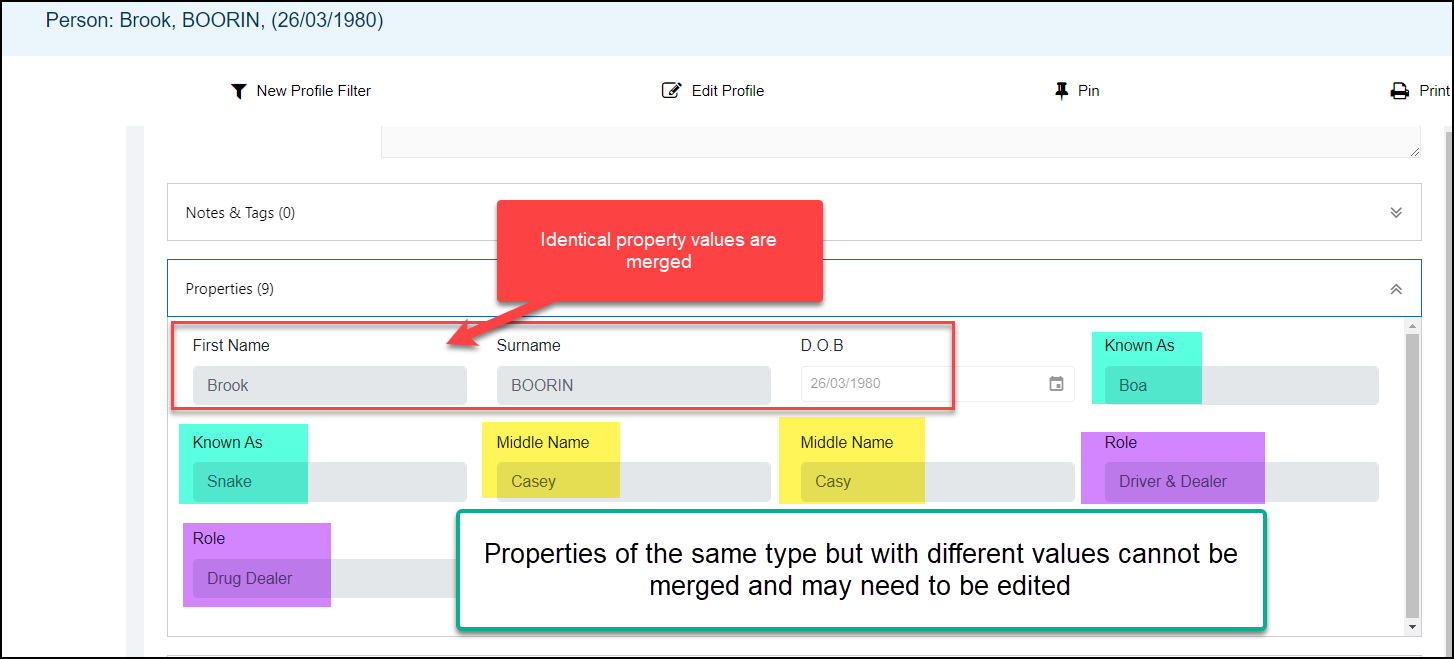
In the Entity Profile, properties with identical values are merged. Properties of the same type but with differing values are not merged so these properties are added to the Entity.
In the following example 3 properties of the same type had different values so all are included in the merged Entity. These can be 'tidied-up' by editing and \ or removing properties within the Entity Profile or from the Entity record within a related Document. Also check the Remembered terms in the Profile for any edits or deletions required.
Remove Entities from Duplicates Active List
Where there are Entities on the Potential Duplicates Active list that on review should not be merged, these can be removed and sent to the Ignored list.
Ignore Duplicates
To remove Entities from the Active list;
- click into the checkbox to select an Entity or Entities from the Active list
- select - Ignore Selected and confirm to move the Entities to the Ignored list
Note: Where an Entity with only a single match (that is also not a match to any other potential duplicate) is selected from the Active list and moved to the Ignored list, this will also move the remaining matched Entity to the Ignored list (as otherwise it would create an 'orphan' that couldn't be matched on the Active list).
The reverse applies when an Entity with a single matched Entity is restored from the Ignored list to the Active list, both Entities will be moved to the Active list.
Potential matches of an Entity on the ignored list can be viewed (by clicking on the Entity). Merges can only be made from the Active list so the Entity would have to be restored first. To restore an Entity to the Active list, select the Entity and click Restore.
Entities from the Ignored list can subsequently be moved back to the Active list by checkbox selection, then click Restore Selected.

Note: It is recommended to review Entities on the Ignored list for any new Entity matches that have occurred after the Entity was added to the Ignore list. These Entities can then be restored to the Active list for merging if required.
Related Topics
| Adding Entities | Editing or Deleting Document Entities | The Entity Profile | Entities and Document (Settings) |
Viewing Tips
To view a video at full screen, click on the 'Full screen' button.
To adjust the playback speed (decrease or increase) click on the 3 dots and select Playback speed.
Captions display best if the mouse or touch-pad are not moved or engaged once playing.
Videos have no audio.


| Managing and Merging File Entity Duplicates | Remove Entities from the Duplicates Active List |