Menus and Navigation
As a new user of ModalConnect, it's a good idea to familiarize yourself with the menus, buttons and functions used to navigate around ModalConnect.
Viewing images within these Help pages many images appear as thumbnails, hover \ mouse-over a thumbnail image to view it at full size.
Menus
The following features and menus are those most frequently used for navigation.
Click on a menu item to access the function, display a list or make a selection.
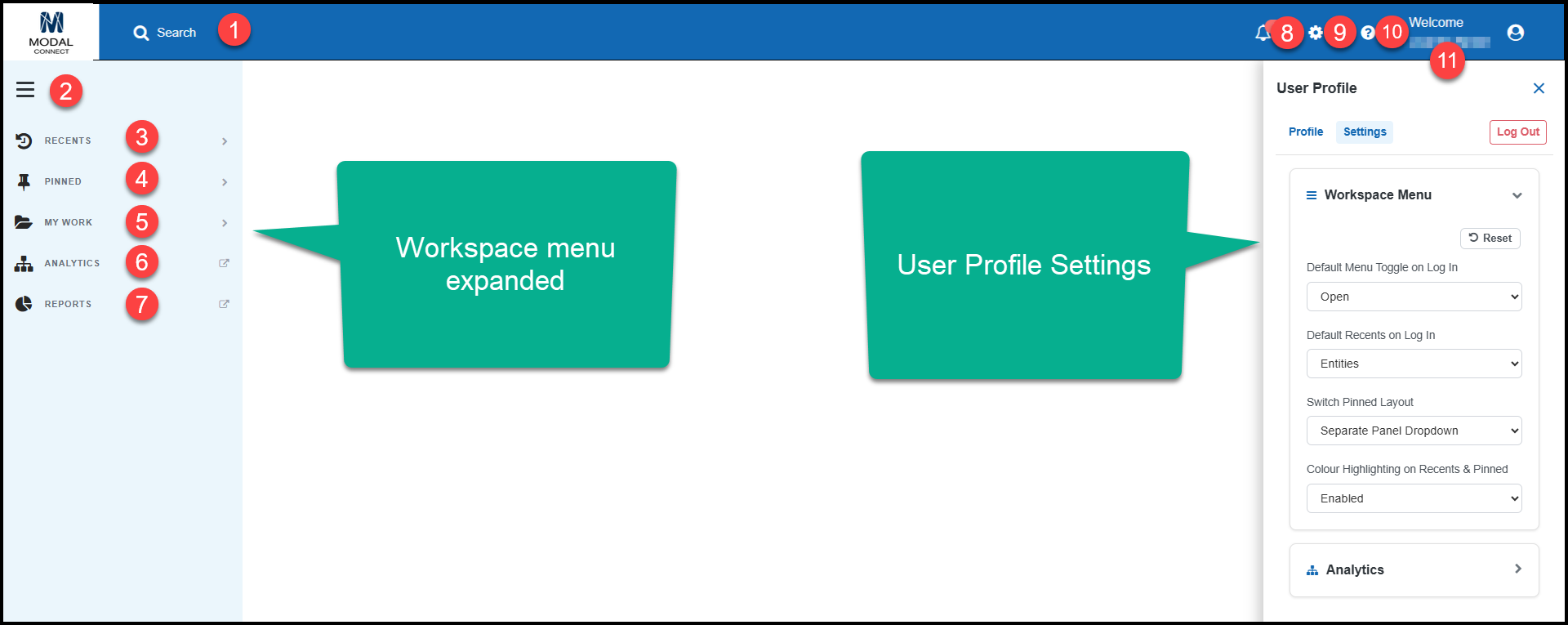
- Searchtop bar item, select to open the main Search page
- Workspace menu. toggle (the bars button) to expand or collapse the workspace menu pane
- Recents - access the user's most recently opened Files, Documents, Tasks or Entities. Click on the menu label to open or close the recents menu and then select a list item to open it.
- Pinned - list of Files, Documents, Entities or Tasks that have been pinned. Note; pinned items may appear nested under the Recents Documents and Entities lists (managed within the Users Profile settings).
- My Work - expand to select to add a new - File, Document, LiNK Form, Task, User or Review LiNK (submissions).
- Analytics - select to open Analytics (opens in a new tab).
- Reports - opens the Reports list page (opens in a new tab).
- Notifications - top bar item, select to view your notifications
- Settings - top bar item, click open the Settings menu
- Help Center - top bar item, opens the Help center
- User Profile - top bar item, opens the user's Profile pane on the right
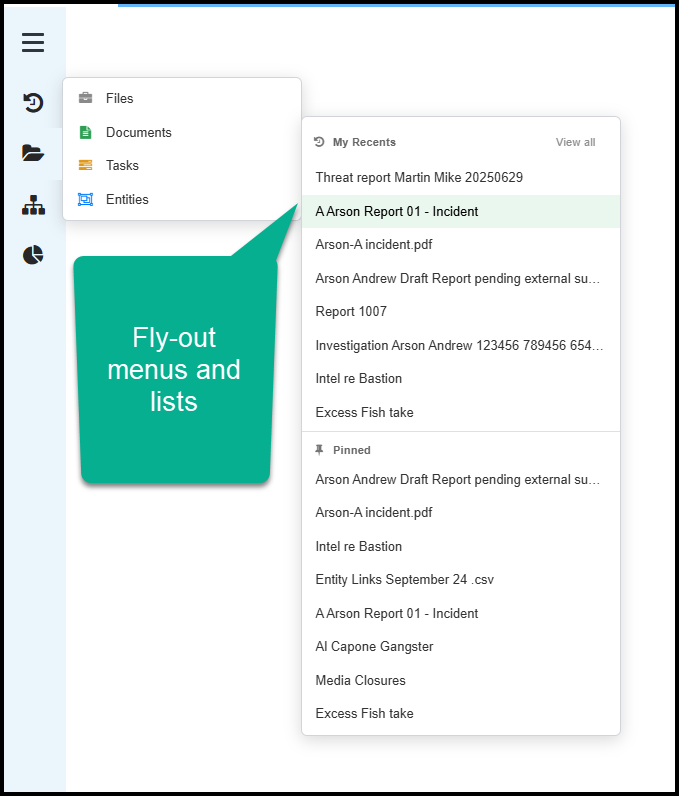
Fly-out menus and lists.
If the Workspace left menu pane has been collapsed so that just the menu buttons show, if you hover over the menu button for Recents, Pinned or My Work 'Fly-out' menu, labels and lists show where items can be selected from.
Reorder Left Menu Items
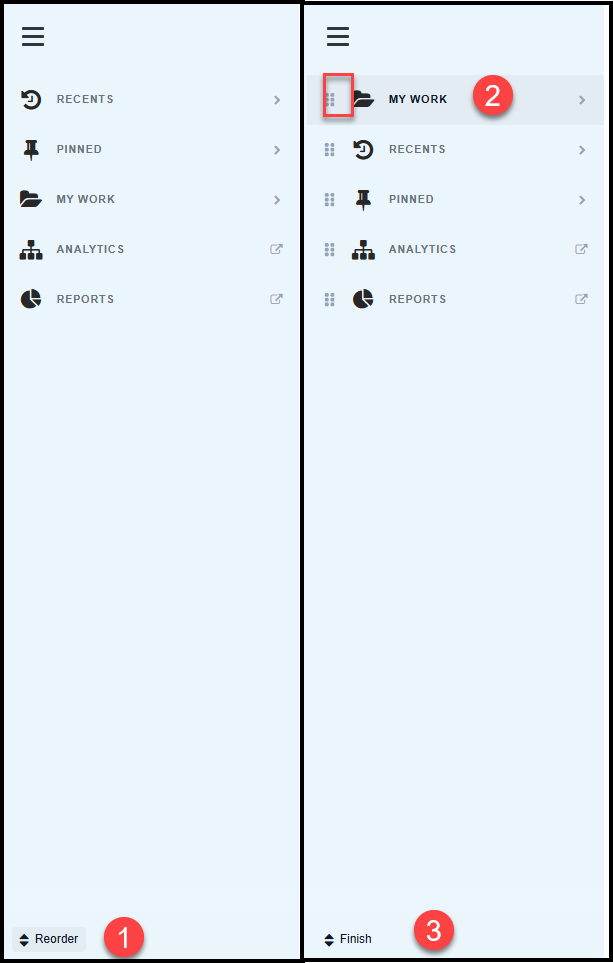
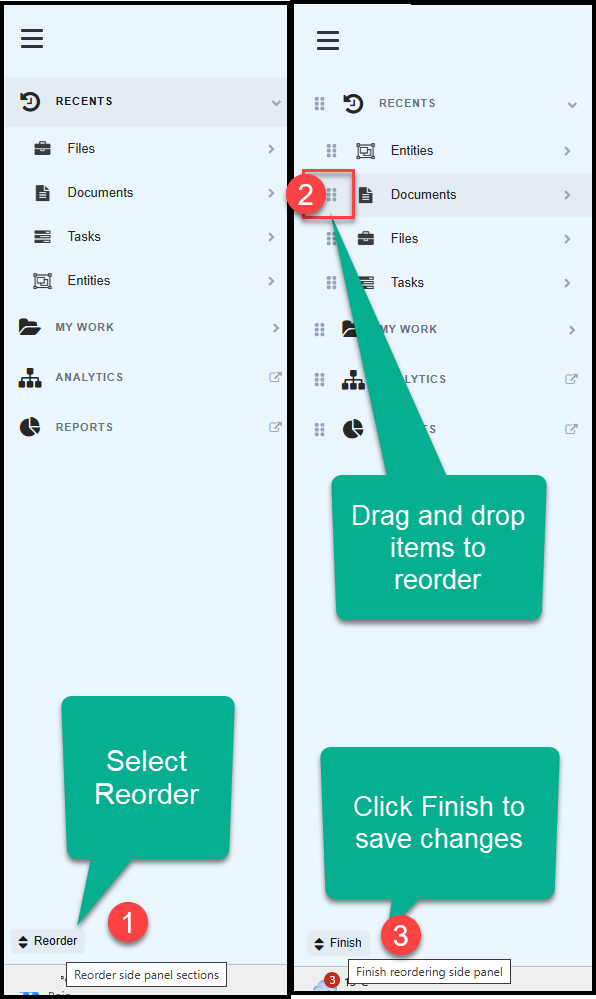
When the left menu items are expanded, the secondary menu items order can be changed.
- With the menu expanded select 'Reorder' from the bottom of the menu pane.
- Next, click on the dots on the left of an item and drag and drop to the desired order.
- When all changes have been made click Finish at the bottom of the left menu.
The above can be repeated for the Recents, Pinned and My Work items.
Recents Menu
Recents include separate lists for the most recently viewed or accessed Files, Documents, Tasks and Entities. Click on a Document, Entity, Task or File name/title to open that item. The default list that shows when Recents is opened is Files, this can be changed via the User Profile Settings
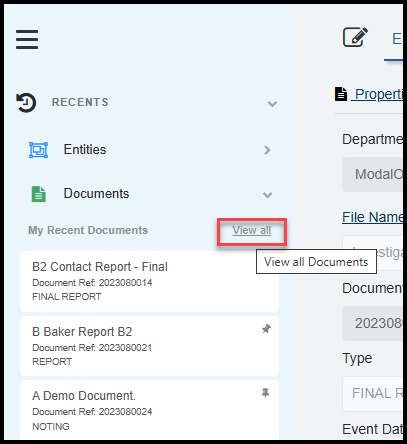
The View All option shows at the top of the Recent Files, Documents and Tasks lists. Clicking View All opens the related page.
Pinned
Pinneditems include lists for the most recently pinned Documents, Tasks or Entities.
When Pinned is set as a separate menu item (default User Profile Setting), the list items are not separated by type but do include the related icon and optionally (if enabled in the User Settings) show a coloured highlight (seen when mousing or hovering over the list item) making them easier to distinguish.
When Pinned is set to show under the related Recents list, the pinned lists only show for the related type.
Note, when the menu is expanded, Files Documents, Entities and Tasks can be pinned or unpinned directly from the listing by clicking directly on the pin.

User Profile Settings
To update any of the workspace menu default settings open the User Profile settings by;
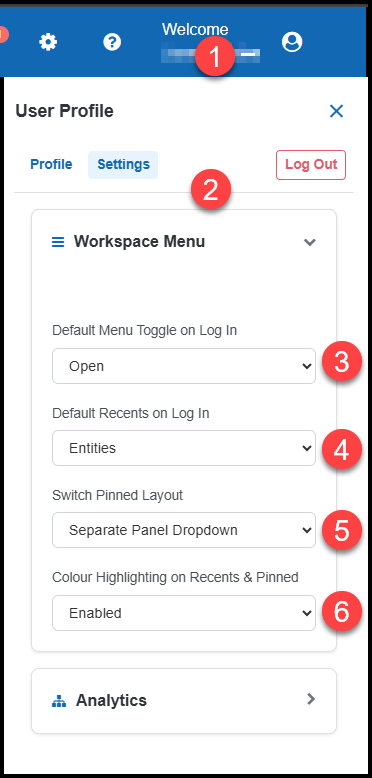
- Click on your username (under Welcome) on the right of the top bar.
- Select Settings and expand Workspace Menu.
- The workspace left menu pane default setting is 'On' which expands the menu. Option is to reset this to 'Collapsed'
- The Recents list defaults to Files, with the option to reset this to Documents, Entities or Tasks.
- The default Pinned setting is to show as a menu item as per Recents listings. Option is to show pinned items under the Recents listings for Files, Documents, Entities and Tasks (note this removes the Pinned button menu item from the Workspace menu). Changes are automatically saved and applied.
- Colour highlighting of list items is Enabled by default, which highlights an item when hovering or mousing over the list items of Documents (green), Entities (blue) and Tasks (orange). Option is to turn off highlights.
Menu Buttons
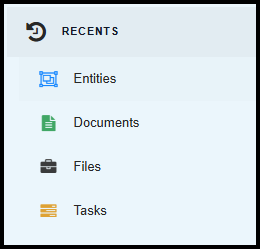
These buttons are frequently used for navigation or show which Module type or menu list is currently being viewed. Clicking on a button from the Workspace menu will open a list of the selected module type under the Recents and Pinned - Files, Documents, Tasks or Entities.
Toggles
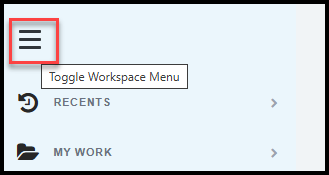
Toggles (3 horizontal bars) are shown above collapsible panels and menus and are used to open or close those menus or panels. Closing the panel or menu provides more space to view other details on the page. Click on the toggle to open or close the left menu panel.
The Workspace menu buttons remain visible on the far left even when collapsed. Select to open or collapse the left menu pane.
Links
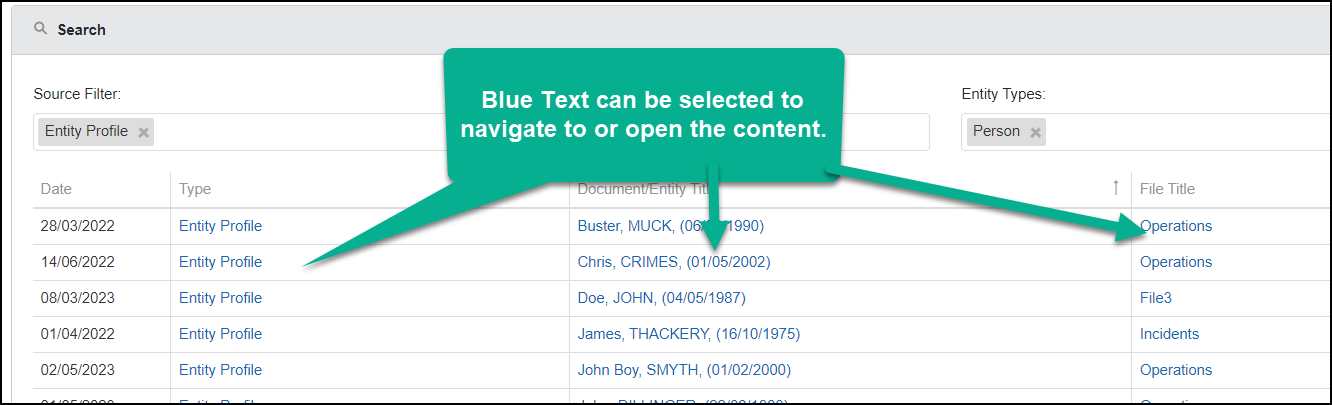
Wherever content is shown with blue text this provides a link. Clicking on the link opens the selected content.
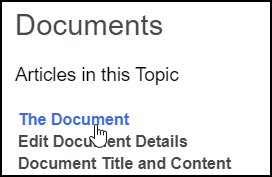
Topic or Article links in the online Help only show blue when hovered over or clicked on.
View All
The View All option is shown at the top of the Recents lists in the Workspace left menu and on the Homepage at the lower right of the table listings for Recent - Files, Documents or Active Tasks.
Clicking View All opens the (all) 'Files', 'Documents', or the 'Organisation Tasks' page. On each of these pages - all Files, Documents, or Tasks can be searched for.
Page Results
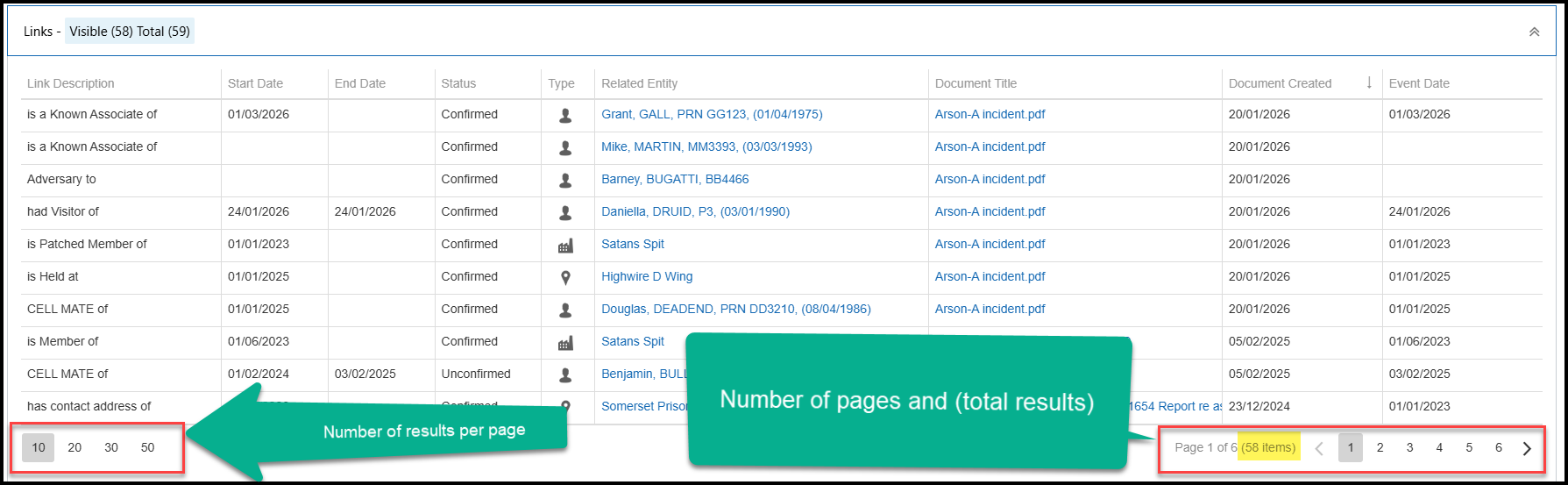
When viewing lists of results, these are typically displayed with a default list of 10 which can be increased by selecting a greater option at the lower left of the list.
The number of pages found and total results shows on the lower right of the lists. Click on the page number or the next icon > to view further results.
Depending on your screen resolution or size, some columns may not be visible. Where this occurs you will see ellipsis (3 dots) which when clicked on will display that hidden detail underneath.
The Homepage
The Homepage is the landing page on login. To access the Homepage click on the ModalConnect logo to the left of the top bar.
See the Video