Searching Documents and Entities
Articles in this Topic
| Search | Search Page Layout |
| About Search Terms | Search Conditions |
| Source Filters | Sort by Best Match or Most Recent |
| Date Range | About Results |
| Preview Result | Open or View Result Type |
| Watch the Videos |
ModalSearch AI provides the ability to search across all attributes of Documents and Entities.
Note: User permissions apply as to whether content from Entities, Documents or Files are available to a User via search results.
If the content being searched for exists within a private Department and or File (including it's Documents, Attachments, Notes and Entity Profiles), then search results will only show content to those users with permissions to the private Department and\or File.
Search
To start a search, in the top search bar enter the search terms then click Enter from your keyboard or click the search button.
The Search Tips show examples of different operators that can be applied to your search terms. These tips can be viewed by hovering over the i (info) button or click on the i to keep the tips open (until the next click).
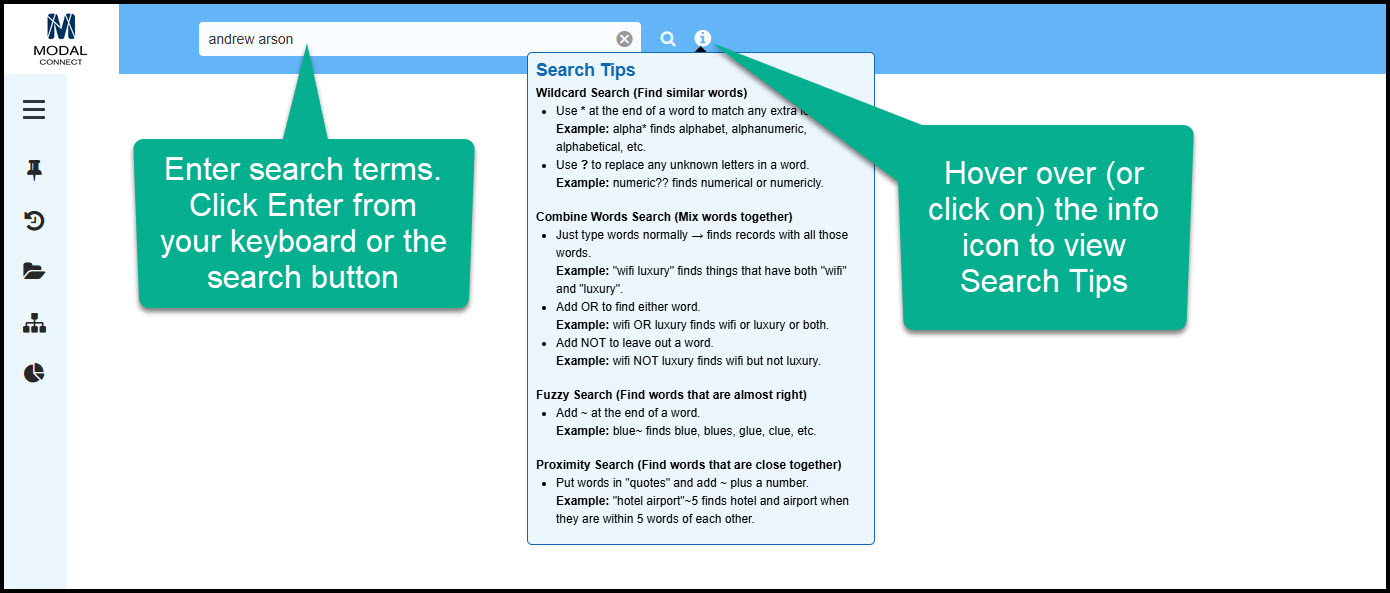
ModalSearch AI automatically applies an AND operator where there is a space between terms, so searching for the term; Andrew Arson returns results that contain both Andrew and Arson.
 Search Page Layout
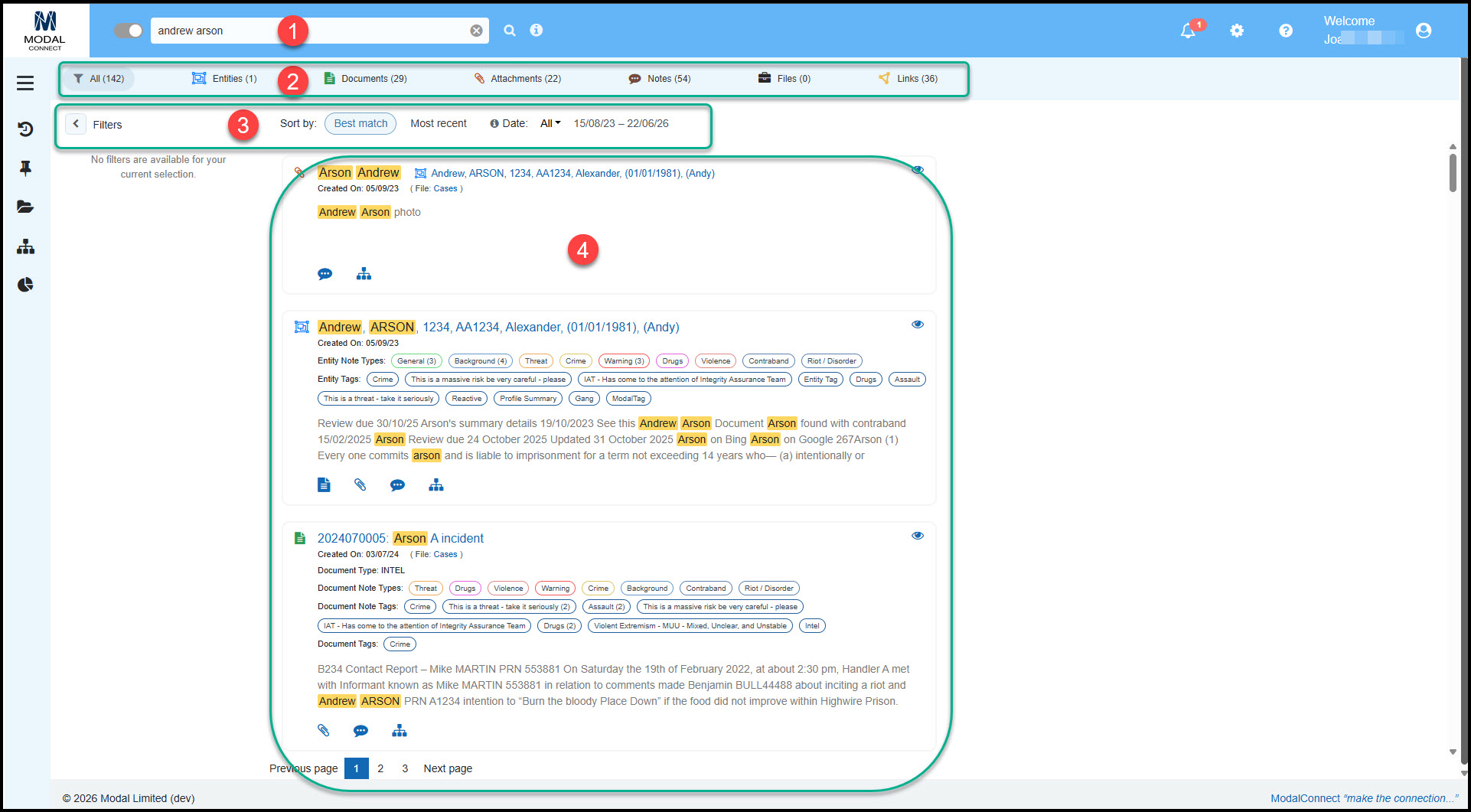
The main Search page has the following layout and features;
- Search box in the top bar - enter search terms here and click Enter or the Search button.
- Result categories - defaults to All then listed by category and includes the number of results per category.
- Filters (for selected category) - sort results by Best match (default) or Most Recent and a Date range selector.
- Results list - 50 results per page.
Customise ModalSearch AI Settings
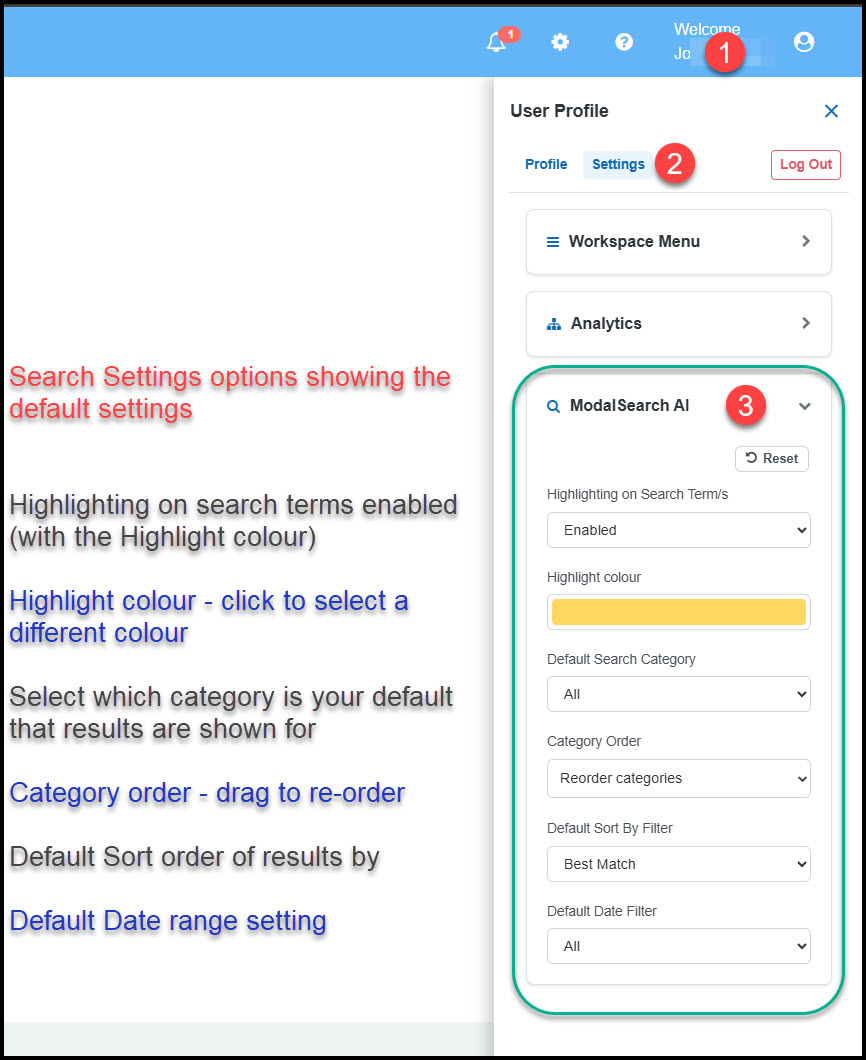
Via the User Profile settings, users can set their preference of the ModalSearch AI categories order, result colour highlights, sorting of results and the default date range.
- Open the User profile panel and select Settings
- Select ModalSearch AI
- Set or select your preferences - these are updated immediately and can be changed or reset to the defaults at any time.
About Search Terms
Search terms are the content being searched for and can include - words\text, numbers, or dates. Separate each term with a space. Search terms are not case sensitive.
Click on the info icon to view the Search Tips about the Conditions that can be applied to search terms to further refine or expand a search. To Learn more about conditions and to view examples see this article - Search Conditions
Search tips: To view the Search tips hover over the info icon or click on it to keep open (closes on next click).
Tips.png "Search Tips")
Search Conditions
The following Search Conditions can be applied to search terms.
- Exact Match for a single term, returns results that include an exact match for a single term word, number or date.
- And for 2 or more terms separated by a space, search returns results that include a match (within the same Entity, document, attachment or note) for all of the given search terms. Separate each term by a space.
- OR condition enables a search for content that contains either term given e.g both terms do not need to (but may) appear in the same result as it could be either OR. Note OR must be between terms and in capitals with a space between terms.
- WIldcard* condition search uses the * character (search for multiples) or the ? character (search for single) which can be placed anywhere before, after or within the word \ term to widen the search. Note only 1 wildcard can be used against a term.
- Combined search allows the search terms to use both And, OR condition with a wildcard.
- Phrase search uses "quotation marks" to find an exact match for a phrase
- Proximity Search uses the Tilde character ~ followed by the number of words nearby to find terms that are near to each other in a document.
- Fuzzy Search uses the Tilde character ~ after a term to find variations of a term
- -Exclude condition uses a hyphen - character which is placed immediately in front of a search term or the text NOT (in capitals and with a space between terms) to exclude a term from the search.
- Hyphenated Terms must include the hyphen - otherwise each part is treated as an AND
- Commas, the comma must be included where a comma is between terms with no spaces
- Apostrophes: Terms that include an apostrophe must either include the apostrophe or can be replaced with a ? or * in a search
- Date Search: Results are dependent on the format of saved date data. A Phrase search is useful for finding best match, otherwise the AND or Exact with the options of Wildcards.
| Exact Match Search | AND Search | OR Search |
| Wildcard Search | Combination Search | Phrase Search |
| Proximity Search | Fuzzy Search | Exclude Search |
| Hyphenated or comma separated Terms | Apostrophes | Date Search |
Search Examples
Exact Match Search
Results match a single term
- Search term: Smith
- Result Set: Includes any content with the term Smith
- Search term: Smith-Jones Note Hyphenated or comma separated Terms are treated as a single term.
- Result Set: Includes any content with the term Smith-Jones
- Search term: O'Neill (Note the apostrophe must be included).
- Result Set: Includes any content with the term O'Neill
AND Search
Results provide an exact match for 2 or more terms with a space in between terms. The condition is automatically applied when a space is used between terms.
- Search terms: John Smith (separated by a space)
- Result Set: Only includes results with both terms John and Smith
- Search terms: Billy-Joe Jones
- Result Set: Only includes results with both terms Billy-Joe andJones
- Search term: John Smith 17/06/1988
- Result Set: Only includes results with John and Smith and 17/06/1988
OR Search
To find 'both' or 'either' terms - put OR (in capitals) between terms. Results include records that contain both termsoreither term.
- Search terms: car OR vehicle
- Result set includes records that contain: 'car andor vehicle'.
Wildcard Search
Use the asterisk symbol * to apply to a search term as a prefix, suffix or 'infill' for a 'Wildcard' to search for a single or multiple variations. Results are extended to find the given terms plus any variations of a term (depending where the wildcard is placed).
Use a ? symbol to limit the search to a single replacement as a prefix, suffix or 'infill'. E.g will only find a single variation.
Examples (using Entity names)
- Search term Smit? Result Set: Smith, Smite
- Search terms: Jo? Results set: Joe, Job, Jon
- Search term: Smith*
- Result Set: Smith, Smithy, Smiths, Smithson, Smith-Jones
- Search terms: Jo* Sm*th
- Result Set: John Smith or Smyth, Joe, John-Boy, Smith or Smyth, Joseph Smith or Smyth, Johnny Smith or Smyth
- Search terms: Jo* Smith* *05/1999
- Result Set: Joe, Joseph, John, John-Boy, Johnny, Joan, Jolene, Jo-Ann and Smith, Smithy, Smithsonand with a date between 01/05/1999 to 31/05/1999
- Search term: Tom* O*
- Result Set: may include Entities with properties of Tom, Toma, Tomas, Tommy, with O'Connor, O'Neill, Olsen, Owens
Combination Search
- Search terms: Jo* Smith using a wildcard with And
- Result Set may include any Entity with a property term with Jo, Joe, John, John-Boy, Jolene, Jose, Josephand also has a property of Smith
Phrase Search
To search for a phrase, use quotation marks around the search terms (can include dates or numbers) e.g "term1, term2, term3" If the quotation marks are not used then it just becomes a standard AND search.
- Search term - "organized crime syndicate"
- Results include any content that includes the exact phrase organized crime syndicate Will not return organized local crime syndicate or syndicate organized crime
To extend a phrase search to enable some variation, use a Proximity search.
Proximity Search
Proximity searches are used to find terms that are near each other in a document. Insert a tilde ~ symbol at the end of a phrase followed by the number of words that create the proximity boundary. For example, "organized crime syndicate"~10 finds the terms organized, crime and syndicate within ten words of each other in a document.
Fuzzy Search
A fuzzy search finds matches in terms that have a similar construction, expanding a term up to the maximum of 50 terms that meet the distance criteria of two or less.
To do a fuzzy search, use the tilde ~ symbol at the end of a single word with an optional parameter, a number between 0 and 2 (default), that specifies the edit distance. For example, blue~ or blue~1 would return blue, blues, and glue.
Fuzzy search can only be applied to terms, not quotation-enclosed phrases, but you can append the tilde to each term individually in a multi-part name or phrase. For example, Unviersty~ of~ Wshington~ would match on University of Washington.
Exclude Search
To exclude a term from the search either use the hyphen character - immediately before the word - no space, or the word NOT (in capitals) before the term with a space between NOT and the term.
- Search terms: John* Smith -Johnson or John* Smith NOT Johnson
- Result Set: Will include John Smith, Johnathon Smith, Johnny Smith (but not Johnson).
Note: A Wildcard search condition cannot be used with an exclude condition - against the same term e.g -Joh*
A search using both the wildcard and exclude (or NOT) conditions on different terms is valid e.g Joh* Smith* -Smithson.
A Wildcard search cannot be used on a hyphenated search term e.g Mary-A* or *ary-Ann as the hyphen also represents the exclude condition.
In both of these scenarios the search is canceled as it is using both the exclude and partial conditions and is trying to apply both to a single term
Hyphenated or comma separated Terms
Where a term is hyphenated or includes a comma it is treated as a single term and when searching, the hyphen or comma must be included to get an exact match. If the hyphen or comma is not used but with a space between then each term is treated as a single term (as per the And condition). If the hyphen or comma is omitted with no space, the term will not be found.
- Search term: Mary-Ann
- Result set: Mary-Ann and Mary-Lou-Ann (but not Mary-Lou, Maryann, Mary or Ann which are treated as separate terms).
- Search term: 123,456
- Result set: 123,456 (but not 123 456 or 123456 or 123-456)
A term with multiple hyphens is treated as one term. - Search term: Mary-Lou-Ann
- Result Set: Mary-Lou-Ann (but not Mary-Ann or Mary-Lou)
Multiple hyphens between words split the term, treating each as separate terms. E.g Mary---Ann will be treated as 2 terms. - Search Term: Mary Ann
- Result Set includes Entities with Properties that include both Mary and Ann and also includes hyphenated terms e.g Mary-Ann and Mary-Lou-Ann.
Apostrophes
When searching for a term that includes an apostrophe (e.g O'Connor) then the apostrophe must be used in the search.
If the search is for O Connor or OConnor without the apostrophe the results will not return O'Connor.
Alternatively a wildcard *or ? condition can be used in place of the apostrophe. E.g O*Connor or O?Connor
Date Search
When searching for a date it will depend on the format the date has been saved as. Where the format of dd mm yyyy has been used it is not necessary to use the / as a separator when searching - just leave a space between. Apply the Phrase condition by using quotation marks to focus results e.g "dd mm yyyy" or any variation of the date format "10 May 2023". When searching for a partial date, again separate the day, month and year e.g 10 2023 or October 2023.
Source Filters
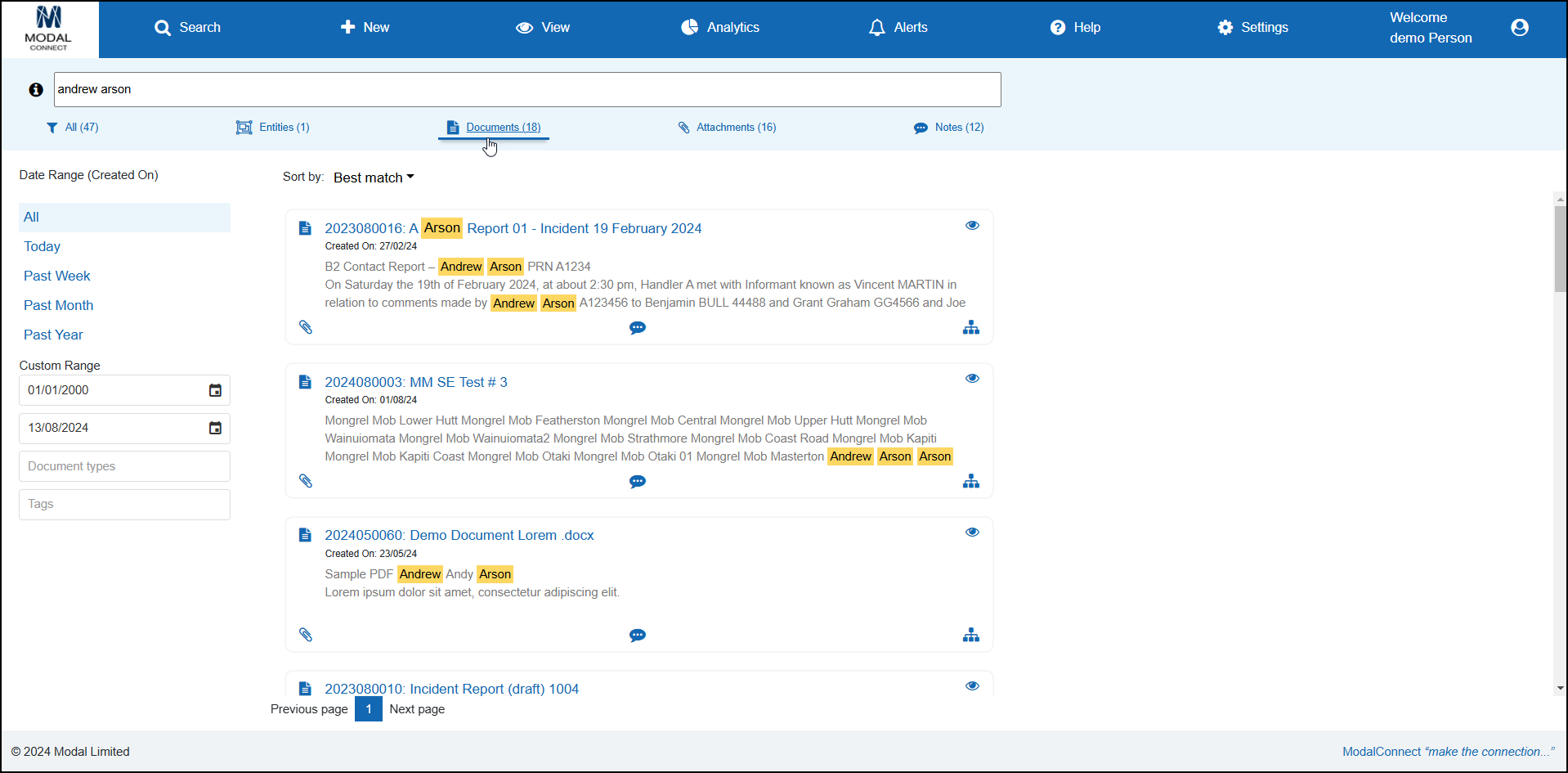
The Source filters determine the content type searched and show the number of results found from each source type in brackets above the results list. Results are listed by 'All' (default setting). To view results by a single source type select\click on the source name. The selected Source type is underlined.
-
 - includes and shows all results found for the search terms provided across Entities, Documents, Attachments and Notes (this is the default view).
 -
 - includes and shows results found for the search terms provided sourced from Entity Profile\s (from the Name\Title, Entity Summary and\or Entity Properties).
 -
 - results sourced from the Document's Title, Document Number and\or Document content.
 -
 - results sourced from Documents or Entity Profile Attachments (label, description or content).
 -
 - results sourced from Documents and\or Entity Profiles Notes.
When results are filtered by Entities, Documents or Notes, the results can be further filtered by Type and\or Tag. These filters appear under the Date Range selector.
- Entities - filter results further by Entity Profile Tags.
- Documents - filter results further by Document Type and\or Document Tags
- Notes - filter results further by Note Type and\or NoteTags
Select the Type and\or Tag to filter results by. Repeat to add further note types or tags*.
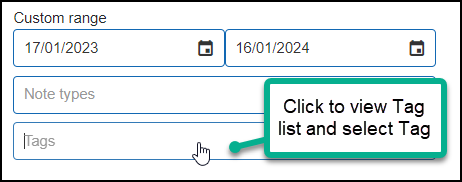
*Note for where multiple Tags, Document Types or note Types are selected:
The Tags, Document Types and Note Types selected to filter results by apply as 'or' operators. So for example if TagA and TagB are applied, results are filtered if the document, note or Entity being filtered has TagA or TagB. So it is not necessary for the document, note or Entity to have all of the selected tags but must have at least 1 of the selected tags.
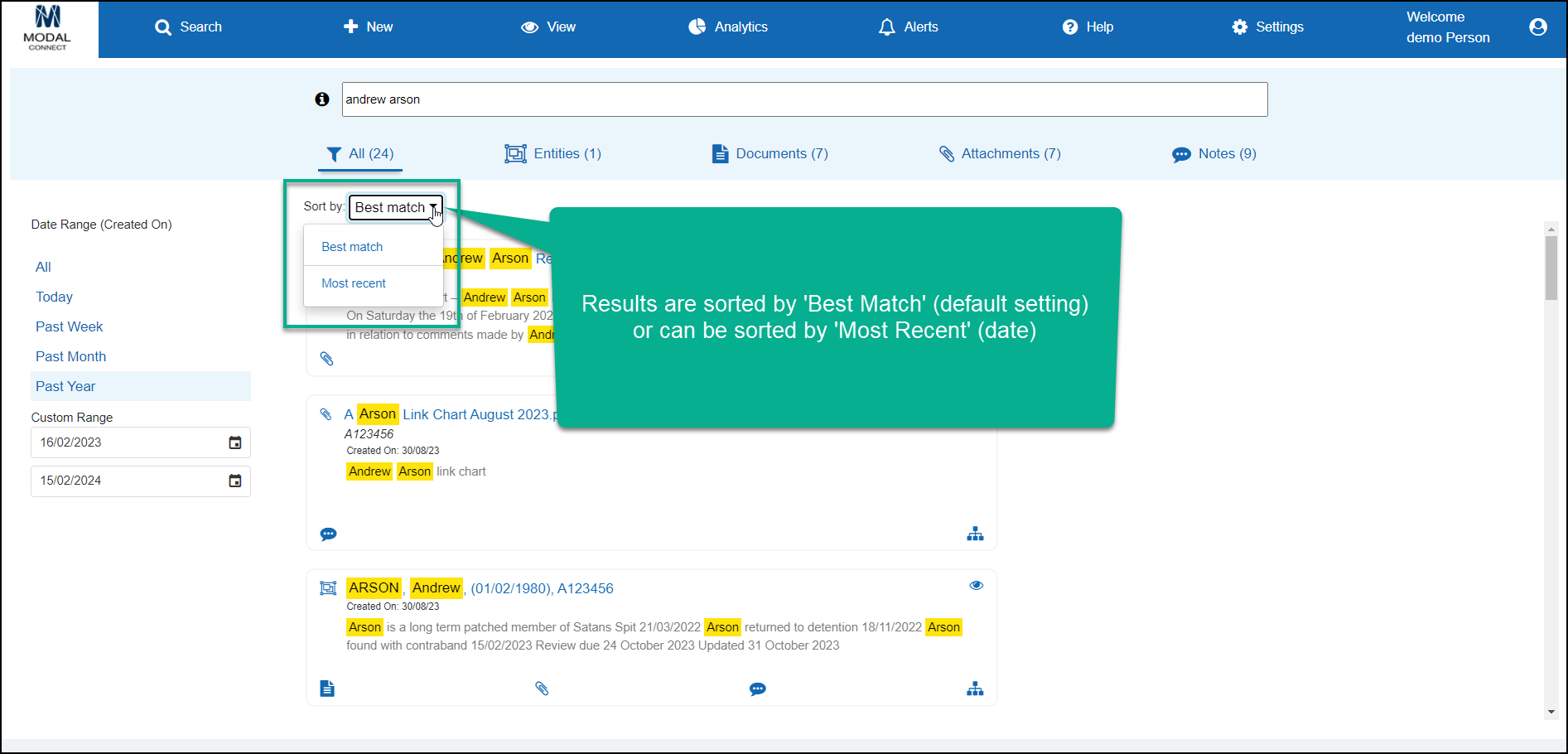
Sort by Best Match or Most Recent
This filter allows results to be filtered by 'Best match' (this is the default setting for results) or 'Most recent' (date). Click on the filter to change the value to sort results by.
Date Range
To Search or filter results by a Date Range select one of the options shown ('Past Year' is the default date range) or filter by selecting a Custom date range. To include results that were created more than a year ago, just click ALL from the top of the date range options or use the custom date range. To set a custom range either use the date controls for the From and\or To date or over-write the date given using the date format dd/mm/yyyy.
 Date Selector.png "Search Date Range Selector")
Results
About Results
The Results are listed and sorted according to the filters applied. The default results listing is by 'All' Source Filters, 'Past Year' (date range) and 'Best Match' sorting. Search term results are highlighted yellow.
Note: Results are shown as text and do not include images or formatting e.g tables.
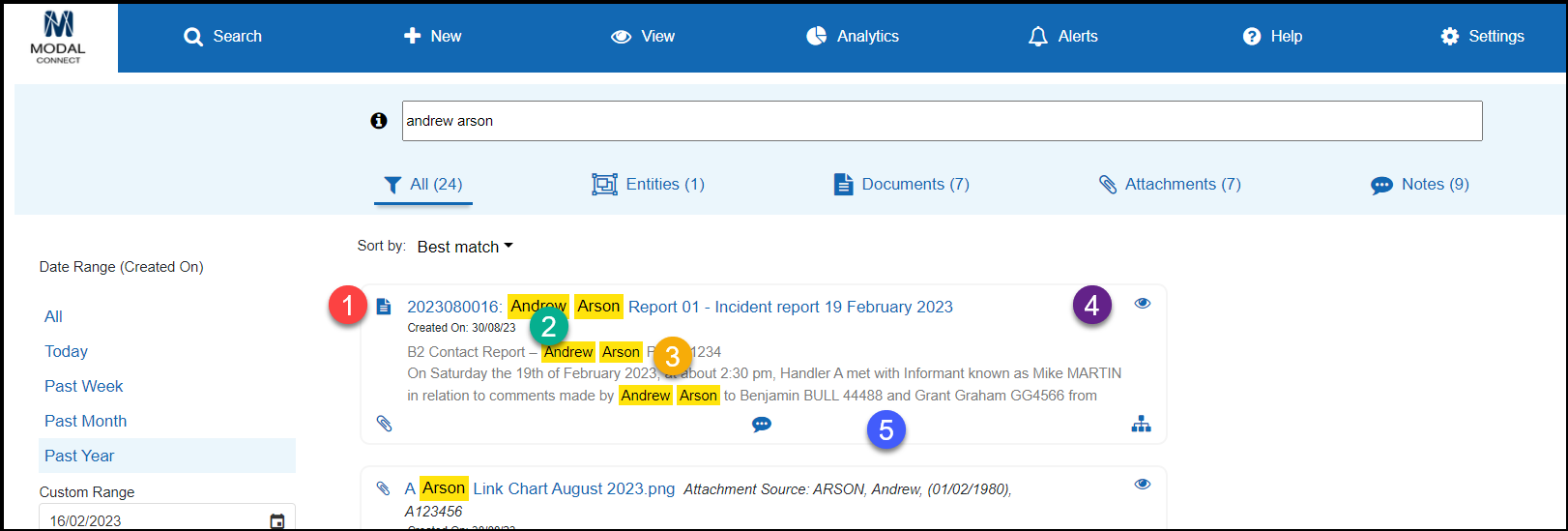
- Each result header shows the icon of the source type (e.g Entity, Document, Attachment or Note) and the result's name, title or label. A Note result heading is prefixed with the Note Type followed by the related Document or Entity profile Name or Title.
- The 'Created' date of the content - Entity, Document, Attachment or Note shows directly under the heading.
- Search term results are highlighted either in the result listed and\or within the Preview.
- Preview button - selecting this (eye icon) opens a preview of the result with any search term results within the type's content highlighted.
- The source icons that show along the bottom of the listed result links to further content that can be accessed by clicking on the icon which opens the following:
Entity icon - opens a Document Note where any of the Entities listed are checked as 'Related Entities' and match the search terms.
Document icon - opens the Entity Profile's Document list
Attachment icon opens the Attachments list for an Entity or Document
Notes icon opens the Notes list for an Entity or Document
Analytics icon opens a link chart for a Document or an Entity profile in Analytics.
Preview Result
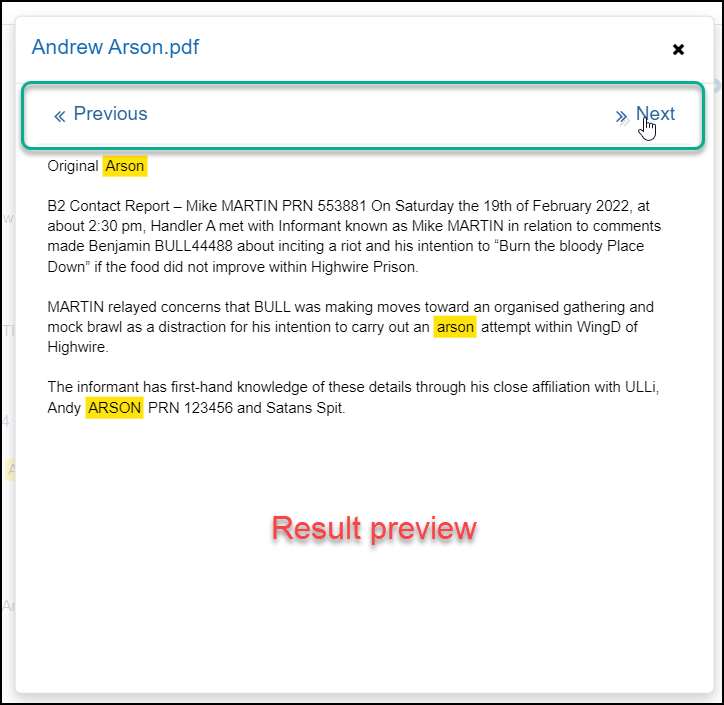
Click on the Preview button  to view a result in context of the source type. Note; not all other content may be shown, only that within close proximity of the search terms.
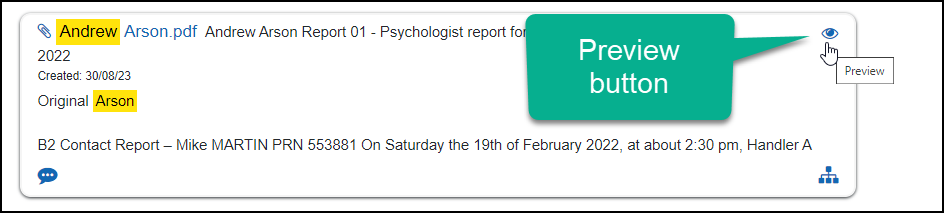
To scroll through and preview following results, use Next and\or Previous within the preview.
Open or View Result Type
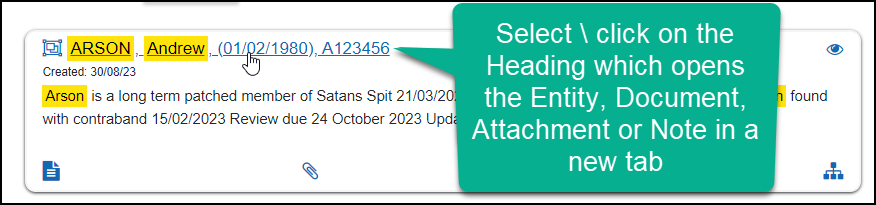
To open or view the source of a result, click on the result header (from either the Results listing or from a Results preview) which opens the Entity Profile, Document, Attachment or Note in a separate tab.
- Entities - opens the selected Entity Profile
- Document - opens the selected Document on the Entity Extraction page
- Attachment - opens the selected Attachment on the Document or Entity Profile's Attachment page with the Attachment in the Preview
- Note - opens the Entity Profile page with the Notes panel expanded or the Document Notes page
Viewing Tips
To view a video at full screen, click on the 'Full screen' button.
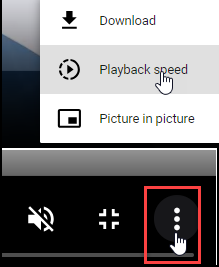
To adjust the playback speed (decrease or increase) click on the 3 dots and select Playback speed.
Captions display best if the mouse or touch-pad are not moved or engaged once playing.
Videos have no audio.

| Searching across Documents and Entities | Applying Search Conditions |