Document Configuration
Articles in this Topic
| Prerequisite Role Permissions | |
| Adding Document Categories | |
| Editing Document Categories | |
| Delete a Document Category |
About Document Categories
Document Types can now be organized into Document Categories.
Within an Entity Profile, Document Types associated with a Document Category are displayed as separate Document listings. Document categories make it easier to view and find the Entity’s related documents.
This Topic covers how to add and manage Document Categories and additional Role permissions for Administrators and general users.
Prerequisite Role Permissions
To manage the Document Configuration in Settings, ModalConnect Administrators require the Department Permission of 'Edit Document Categories' to be added to their Role.
For users to be able to view Document Categories in an Entity Profile, add the 'View Document Categories' Department permission to Roles . If not added, Users will see the Entity's Documents under the standard default 'Documents' listing.
Tip: Document categories will not be visible to users in the Entity Profile unless the View Document Categories permission has been added to the User Role.
This also allows the Categories to be configured prior to general 'release'.
Adding Document Categories
Go to Settings and select Document Configuration
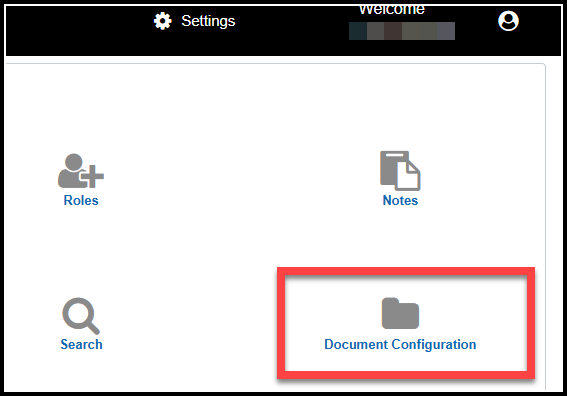
The following steps are used to create a new Document category.
- Click the New button and in the new line add/enter the name of the new category.
- Formatting - check to capitalize or bold the category name text. To apply colour to the text, click into the colour selector, move the slide to the colour range then click into the upper swatch to select the colour grade.
- Select which Departments this category will be available for.
- Select the Document types to assign to the category.
- Save the new category details.

Notes;
Documents can be shown grouped by Types and listed under Document Categories.
User Roles must have the View Document category permission to view categories.
A Document category can be created and assigned to any of the Organization’s Departments by a System settings Administrator with the 'Edit Document Category' permission.
The visibility of Documents in the Entity Profile is unchanged with categories - e.g users still only see the Documents they have permissions for.
Categories are only viewable to users that are members of the Departments assigned to the category.
Where a User is not a member of a or any Department, those Department's Documents will be listed under the generic 'Documents' listing in the Entity Profile.
Where a Document Type is not assigned to any category, it defaults to the generic 'Documents' listing
A Document Type can be added to and appear in more than 1 category.
It can be useful to have an 'All Documents' category to provide a Document total count. particularly where Document types appear in more than 1 category
Editing Document Categories
Categories can be edited including the Name, Formatting options, Departments and or Types. Click Edit to make changes then Save.
Delete a Document Category
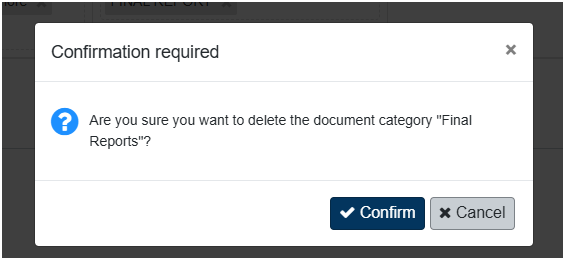
From the end of the Category row click on Delete and then Confirm in the confirmation message, and the Category is deleted. Documents of the Type previously shown under that category will now show under the generic 'Documents' listing or other category if reassigned.